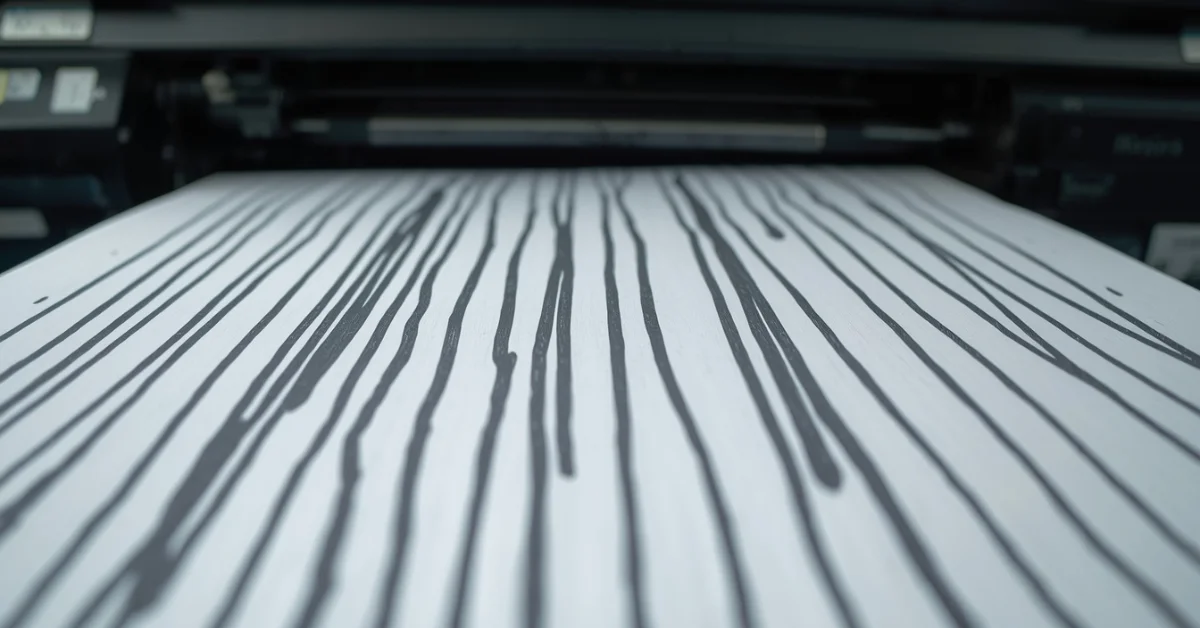
If your laser printer is printing stripes, streaks, or lines across your pages, you’re not alone — and you almost certainly don’t need a new printer. In most cases, the fix is simple: a dirty drum, a nearly-empty toner cartridge, or a clogged corona wire. This guide walks you through every cause and every fix, step by step.
What You’ll Need
- Lint-free cloth
- Isopropyl alcohol (90%+)
- Compressed air canister
- Soft brush
- Protective gloves
- Replacement toner (if needed)
- Printer user manual
What Causes Laser Printer Stripes?
Before you start fixing, it helps to know what type of stripes you’re dealing with. The direction of the lines usually points directly to the cause:
| Stripe Type | Likely Cause |
|---|---|
| Vertical white lines | Dirty or scratched drum unit |
| Vertical black lines | Dirty corona wire or damaged drum |
| Horizontal stripes | Fuser unit problem or paper feed issue |
| Faint / uneven lines | Low or uneven toner distribution |
| Random streaks | Debris inside printer, humidity, or low-quality paper |
Pro Tip: Print a test page first. It helps you clearly observe the direction and pattern of the stripes before you start troubleshooting.
Step-by-Step Fixes for Laser Printer Stripes
1. Check and Shake the Toner Cartridge
The simplest fix first. Open your printer, remove the toner cartridge, and gently rock it back and forth side to side. This redistributes uneven toner inside the cartridge and often eliminates light streaks immediately.
Also check the cartridge for any cracks, leaks, or visible toner buildup. Wipe the outside gently with a lint-free cloth. If the cartridge is nearly empty, replace it — a dying toner cartridge is the most common cause of laser printer stripes.
Pro Tip: Using a third-party or non-OEM toner cartridge? This can also cause uneven toner distribution and streaks. Switching to an OEM cartridge often solves the problem instantly.
Common Mistake: Never use water or household cleaners on any printer component. They damage internal parts and void warranties.
2. Clean the Drum Unit
The drum unit is one of the most common culprits behind vertical lines and white streaks on laser prints. It’s a rotating cylinder that transfers toner onto paper — any scratch, dust, or residue on it will show up as a repeating line on every page.
Remove the drum unit carefully (avoid touching the green or blue surface with bare hands). Dampen a lint-free cloth lightly with isopropyl alcohol and gently wipe the drum surface in one direction. Rotate the drum as you clean to cover the full surface. Let it dry completely before reinserting.
Pro Tip: If the drum has deep scratches or the lines persist after cleaning, the drum unit needs replacing — not just cleaning.
3. Clean the Corona Wire
The corona wire charges the drum so that toner can stick to it properly. When it gets dirty or coated with toner dust, it blocks toner transfer — causing dark vertical lines or uneven streaks on your prints.
Many printers have a small corona wire cleaner tab inside the cartridge slot. Slide it back and forth a few times to clean the wire. If your printer doesn’t have one, use a soft brush or cotton swab to gently clean the wire. This is often overlooked but fixes a surprising number of stripe issues.
Common Mistake: Don’t press hard on the corona wire — it’s very thin and breaks easily. Light, gentle passes are all you need.
4. Inspect the Fuser Unit
The fuser unit uses heat and pressure to bond toner permanently onto paper. If it’s worn, dirty, or not heating evenly, you’ll see horizontal stripes or smudged prints. Check for any visible debris, roller marks, or signs of wear.
On some printers, users can replace the fuser unit themselves — check your user manual. On others, it requires professional service. If your printer is printing horizontal bands specifically, the fuser is the first place to look.
Common Mistake: Never touch the fuser immediately after printing — it can reach temperatures above 200°C (392°F). Always let the printer cool for at least 10 minutes first.
5. Run the Printer’s Built-in Cleaning Cycle
Most modern laser printers have a built-in cleaning cycle accessible through the settings menu or control panel. This cycle runs the drum and fuser through a cleaning pass that removes residual toner particles that manual cleaning might miss.
Go to Settings → Maintenance → Clean Drum (menu names vary by brand). Run the cycle once, then print a test page. If stripes are lighter but still present, run the cycle a second time.
Pro Tip: Make this part of your routine. Running a cleaning cycle once a month prevents most stripe and streak issues before they start.
6. Check Paper Quality and Storage
This one surprises most people — but your paper can absolutely cause laser printer stripes. Damp, dusty, or low-quality paper prevents toner from adhering properly to the page, resulting in streaks, gaps, and uneven prints.
Always use paper that is rated for laser printers. Store paper in a cool, dry location away from humidity. If your paper has been sitting in a humid room, try a fresh ream. Also make sure paper is loaded correctly in the tray — misaligned paper causes uneven fuser contact.
7. Adjust Toner Density Settings
Your printer’s toner density setting controls how much toner is applied per page. If set too low, you get faint prints with light streaks. If set too high, you waste toner and risk smearing.
Go to your printer’s settings (either on the device or via its software on your computer) and find the toner density or print density option. Set it to the default or middle value, then do a test print. Adjust up or down by one step at a time until prints look clean and even.
Common Mistake: Setting toner density too high doesn’t fix stripes — it usually makes smearing and toner waste worse. Always start from the default value.
Quick Troubleshooting Reference
| Problem | Most Likely Cause | Fix |
|---|---|---|
| Persistent vertical lines | Scratched or dirty drum | Clean or replace drum unit |
| Horizontal bands | Fuser unit issue | Inspect or replace fuser |
| Faint / light prints | Low toner or low density setting | Shake cartridge or replace; adjust settings |
| Intermittent stripes | Humidity or paper quality | Store paper properly; use laser-rated paper |
| Dark black streaks | Dirty corona wire | Clean corona wire |
| Blurry or smeared prints | Fuser not heating properly | Check fuser; consult technician |
Also on MiddleLandNews
- iPhone Photography Tips for Beginners
- Types of Wire Connectors and When to Use Them
- How to Use a Tire Pressure Gauge Correctly
Frequently Asked Questions
Why is my laser printer printing stripes?
The most common causes are a low or uneven toner cartridge, a dirty drum unit, a clogged corona wire, or a worn fuser unit. The direction of the stripes (vertical vs. horizontal) helps identify the culprit.
Can a third-party toner cartridge cause stripes?
Yes. Non-OEM toner cartridges often have inconsistent toner distribution, which leads to streaks and uneven prints. Switching to an original manufacturer cartridge usually resolves this.
How do I fix white vertical lines on my laser printer?
White vertical lines are almost always caused by a dirty or scratched drum unit. Remove the drum, clean it gently with isopropyl alcohol on a lint-free cloth, and let it dry before reinserting. If lines persist, replace the drum.
How can I prevent stripes from coming back?
Run the printer’s built-in cleaning cycle monthly, use quality laser-rated paper stored in a dry area, replace toner before it’s completely empty, and avoid leaving the printer unused for long periods.
When should I call a professional?
If stripes persist after trying all the above steps, the fuser unit may need professional replacement, or there may be a hardware defect (like a failing high-voltage power supply). At that point, professional service is recommended.
Bottom Line
Laser printer stripes are almost always fixable without replacing your printer. Start with the toner cartridge, move to the drum and corona wire, then check the fuser and paper quality. Most users solve the problem in under 15 minutes. Keep up with monthly cleaning cycles and you’ll rarely see stripes again.